
The 14 Slide Layouts That Consulting Firms Use for Everything
Spend enough time in consulting and you develop an intuition not just for what to say and how to synthesize something, but also for how to bring it alive visually in the simplest way possible.
When I was starting out I didn’t have that. I’d sit down with a blank slide, stare at it, try to figure out how to arrange the information, and eventually cobble something together. Some slides took an hour. Some took three. The slow ones weren’t slow because the data was complicated. They were slow because I was solving a design problem from scratch every time.
Knowing the full range of slide layouts would have saved me hundreds of hours early on. And even now, after years of building decks, I’ll still experiment with presenting the same data in different styles to see which one lands harder.
Here are fourteen layouts that cover probably 90% of consulting slides.
#1 The big number
The simplest layout and maybe the most underused. A single number fills the center of the slide, with a line or two of context beneath it.
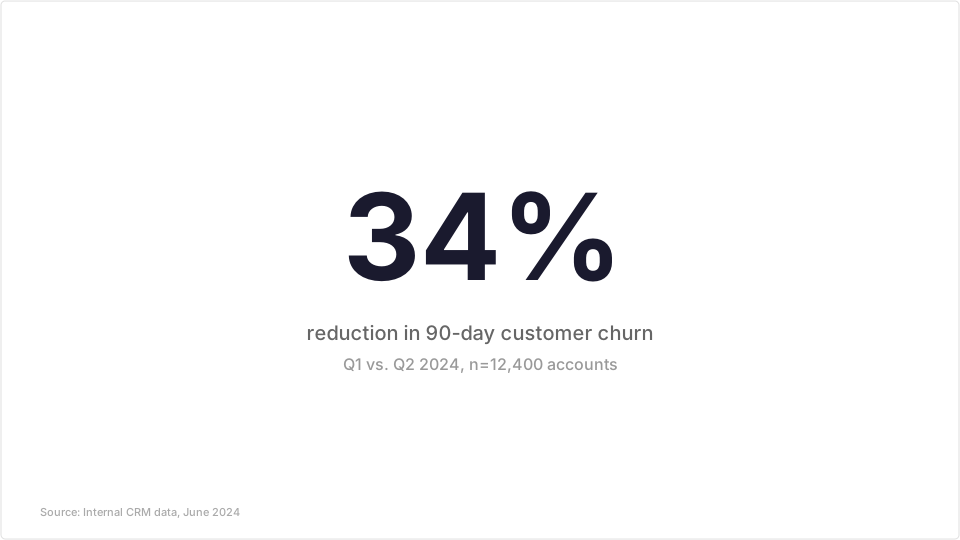
You’d be surprised how rarely people use this. They have a striking data point buried in a table with fourteen other numbers, and the audience has to hunt for it. Pull it out. Make it the whole slide.
When to use it: any time a single metric tells the story. Revenue growth. Customer retention. Cost savings. Market share. If the number is strong enough, let it breathe.
The most common mistake is cramming supporting data onto the same slide. That number lost its power because it’s now competing with a chart, three bullet points, and a footnote. If you need the supporting detail, put it on the next slide.
#2 The column chart
This is the default chart slide. Not a pie chart. A column chart.
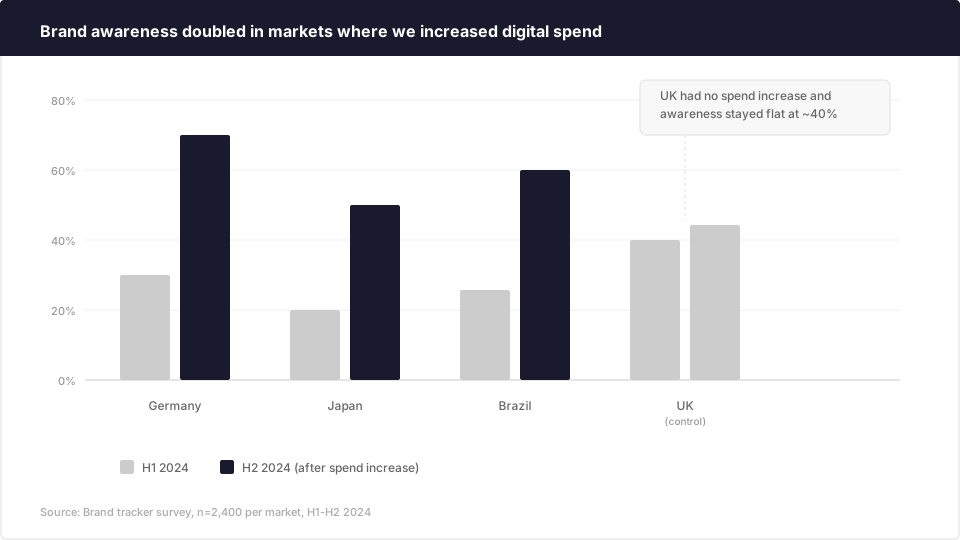
McKinsey banned pie charts decades ago and for good reason. The human eye is bad at comparing areas and angles. A pie with five slices forces you to go back and forth between the slice and the legend, the legend and the slice. A column chart shows the same data with none of that friction. The bars are side by side. The differences are obvious.
In the example above, the grouped columns show before-and-after by market. You can see the change in each market instantly. A pie chart couldn’t show this at all. A table could, but nobody would remember the numbers five minutes later.
When you’re choosing a chart type and aren’t sure, default to columns. They work for comparisons, time series, distributions, and rankings. They’re the Swiss army knife of data visualization.
#3 Chart with insight callout
The workhorse. A chart takes up the left two-thirds of the slide. The right third holds a text box with the takeaway or recommendation. A callout arrow or highlight on the chart draws the eye to the specific data point that matters.
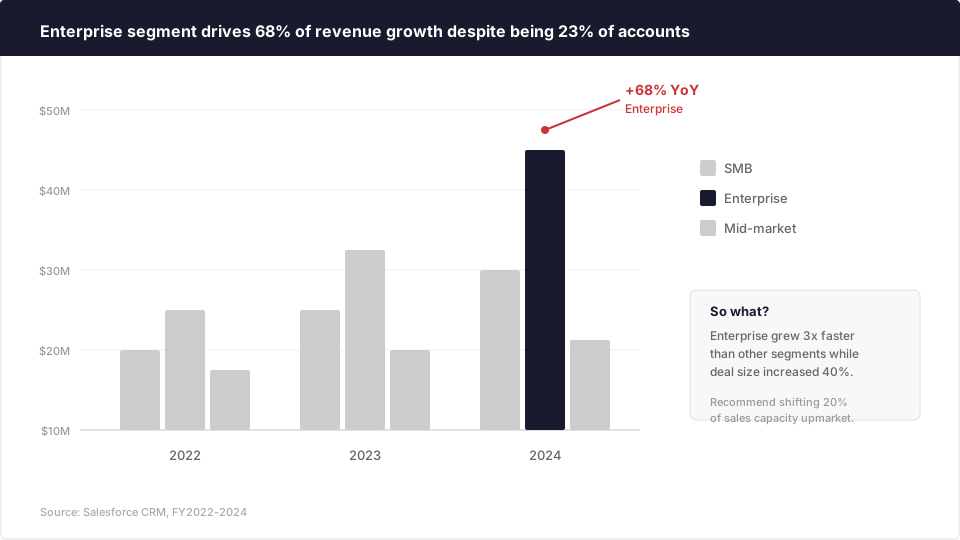
Most people build chart slides without the insight box. The chart sits there, accurate and complete, and the audience is left to interpret it themselves. Different people in the room draw different conclusions. The presenter has to explain the chart verbally, which means the slide isn’t doing its job.
The insight box forces you to commit to a reading of the data. It says: this is what this chart means, and this is what we should do about it. That’s uncomfortable for people who prefer to “let the data speak for itself.” But data doesn’t speak for itself. Data sits there. You have to speak for it.
One detail that matters: the callout arrow should point to the specific bar, line, or data point that supports the insight. Not the chart generally. A specific point. The precision signals that the insight came from analysis, not vibes.
#4 The two-column comparison
Side by side. Before and after. Option A and Option B. Current state and future state. This layout does one thing well: it makes differences visible.
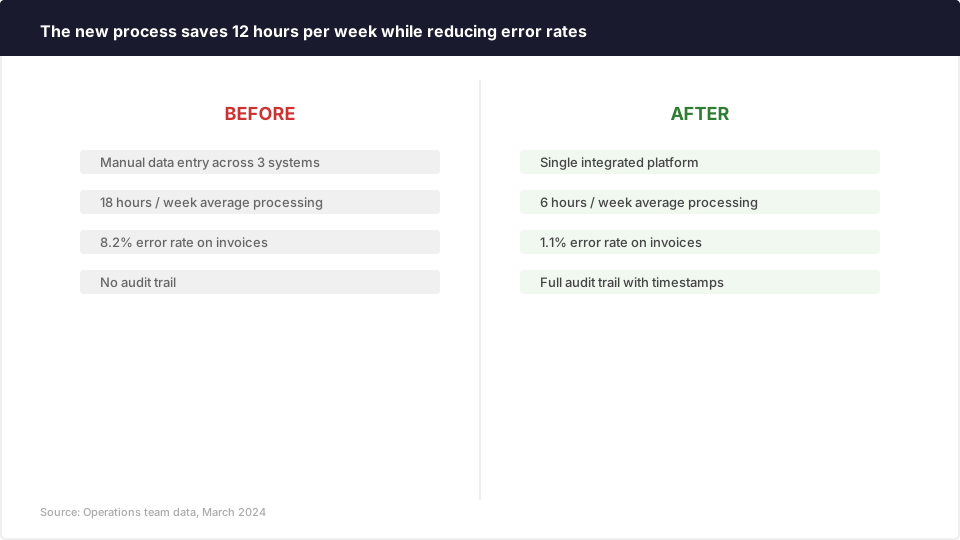
The columns should be parallel in structure. If the left column lists four attributes, the right column lists the same four. The reader’s eye moves horizontally, comparing each row. If the structure is different on each side, the comparison breaks down and the reader has to work.
I’ve found this layout is most useful during “current state” presentations — the point in a project where you’re showing a client what you found and why it matters. A table could hold the same information. But a table buries the contrast. Two columns with color coding make the contrast the point.
#5 The three things
Three items across the middle of the slide, each with an icon and supporting text. This is the “pillar” slide that shows up in every strategy presentation.
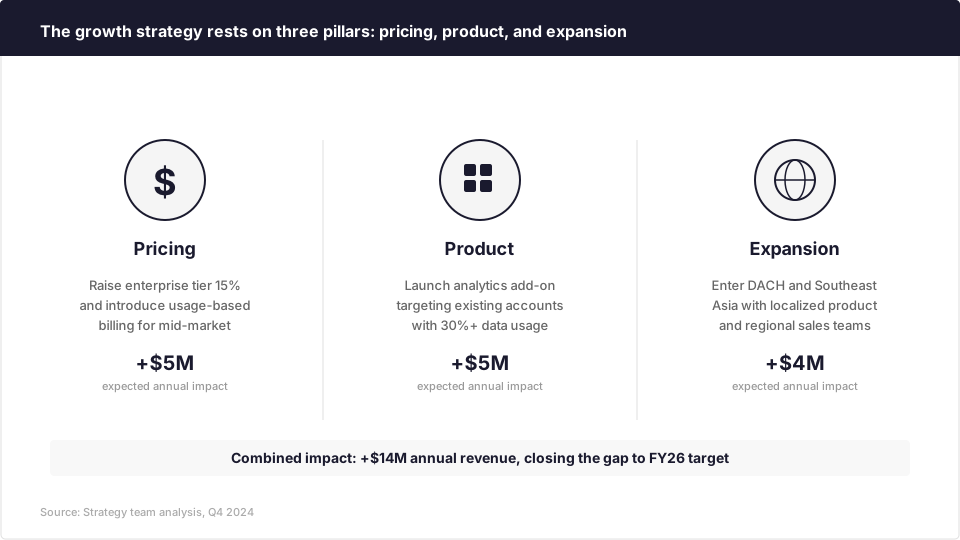
Every strategy deck I’ve worked on has at least one of these. “Our strategy rests on three pillars.” “There are three reasons this matters.” “We recommend three actions.” The number three is doing a lot of work in consulting — it’s specific enough to feel structured but small enough to remember.
The icons aren’t decoration. They give each pillar a visual identity that carries through the rest of the deck. If pillar one is “pricing” with a dollar sign icon, that same icon can appear on later slides when you’re diving into the pricing analysis. It creates visual continuity without repeating yourself.
One trap: don’t force three things when there are really two or four. I’ve seen people split a single idea into two pillars or merge two distinct ideas into one just to hit the magic number. The audience can tell.
#6 The process flow
Horizontal steps connected by arrows. Each step gets a box with a label and a brief description. Below the boxes, you can add timelines, owners, or deliverables.
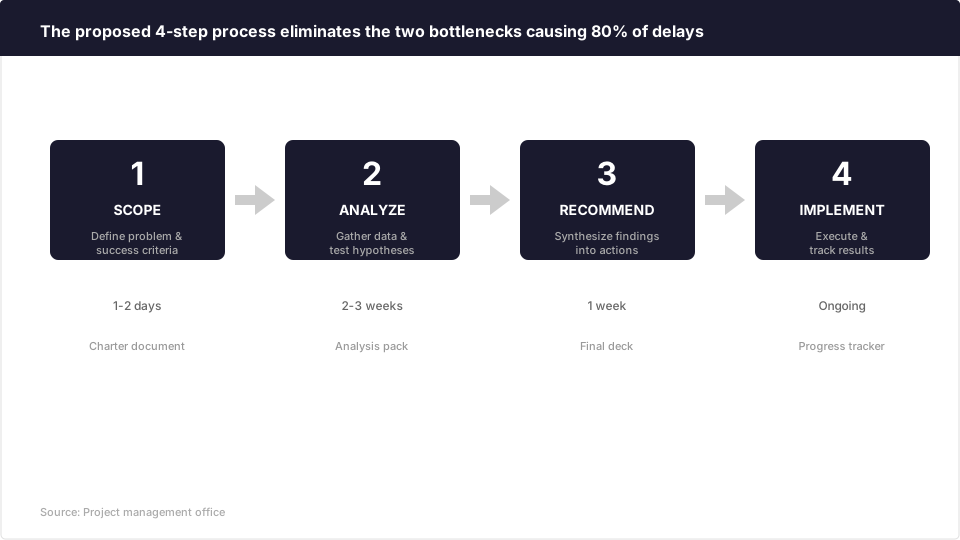
This layout shows up constantly in implementation plans, operating model redesigns, and methodology overviews. It answers the question “how does this work?” at a glance.
The temptation is to include too many steps. I’ve seen process flows with twelve boxes, each containing a paragraph of text, arrows going in three directions. At that point you don’t have a slide. You have a document pretending to be a slide.
Keep it to four or five steps maximum. If the process genuinely has twelve steps, group them into phases and show the phases on this slide. The twelve-step detail goes into the appendix.
#7 The waterfall
A waterfall chart that walks from a starting value to an ending value, with each bar showing how a specific factor adds to or subtracts from the total. The classic consulting use: showing how to get from current performance to a target.
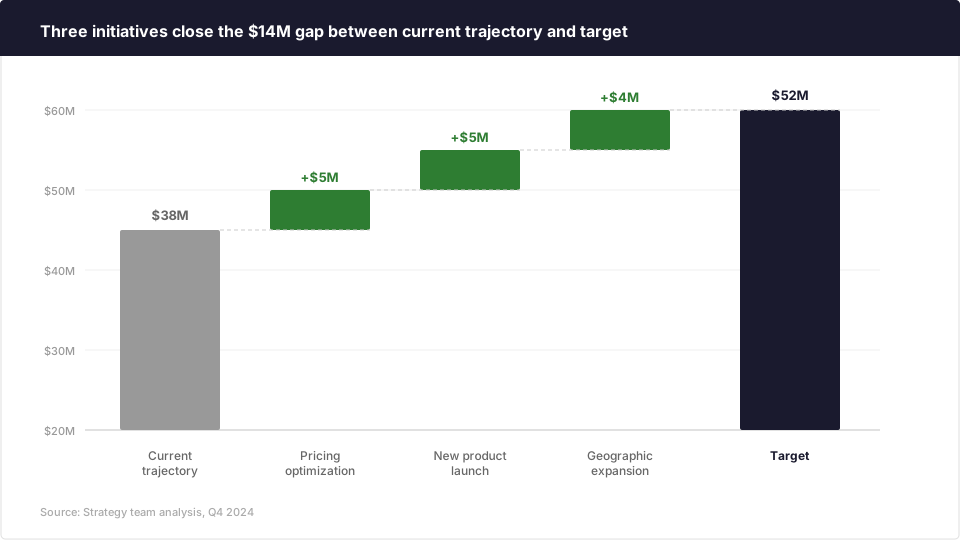
This layout answers the question “how do we close the gap?” in a way that nothing else does as cleanly. Each bar is a lever. Pull this lever, gain $5M. Pull that lever, gain another $4M. The visual makes the math tangible.
I saw this used at McKinsey more than almost any other layout. Revenue bridges. Cost bridges. Margin walks. Anytime someone said “we need to get from X to Y,” the waterfall appeared.
The layout only works when the contributing factors actually add up. If the numbers are fuzzy or overlap, the bridge looks precise while being misleading. Get the math right first.
#8 The funnel
Horizontal bars that narrow from top to bottom, showing volume at each stage of a process. Sales pipeline, hiring pipeline, product conversion — anything where things drop off at each step.
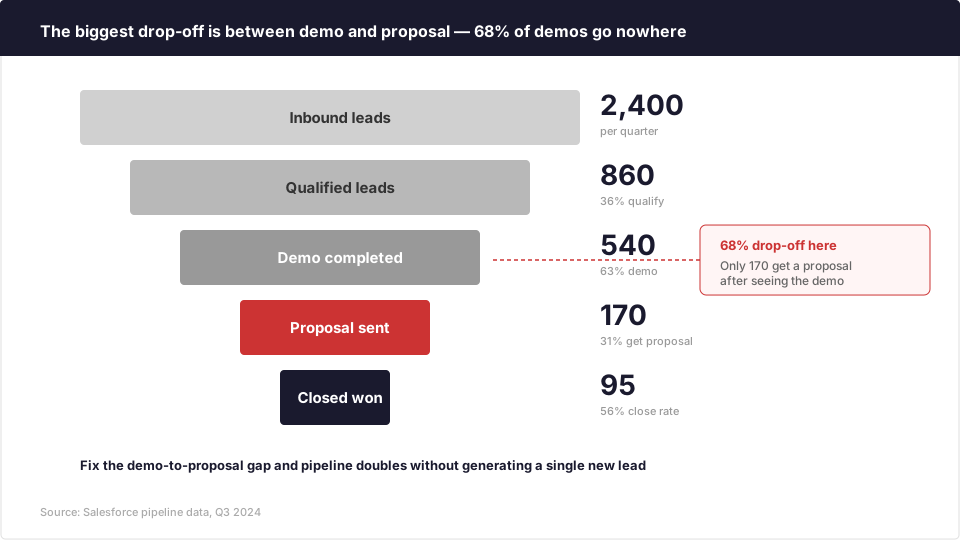
The funnel’s power is that it makes the drop-off visible. In a table, “540 demos resulted in 170 proposals” is just two numbers. In a funnel, the gap between those two bars is the story. You can see the 68% that disappeared.
I like pairing the funnel with a callout that highlights the biggest drop-off. The audience doesn’t need to study every stage — they need to see where the problem is. Color the problem stage differently. Add a callout box. Make the diagnosis unavoidable.
The funnel also works well for survey data. Start with total respondents at the top, then filter by each criterion. “Of 2,400 respondents, 1,200 were in our target demographic, 800 had heard of our product, and 340 had used it.” The narrowing tells the story of awareness and penetration without any commentary.
#9 The 2x2 / framework grid
A two-by-two matrix with labeled axes and items plotted as bubbles or boxes. The classic example is the BCG growth-share matrix, but the layout applies to anything where two dimensions create meaningful quadrants.
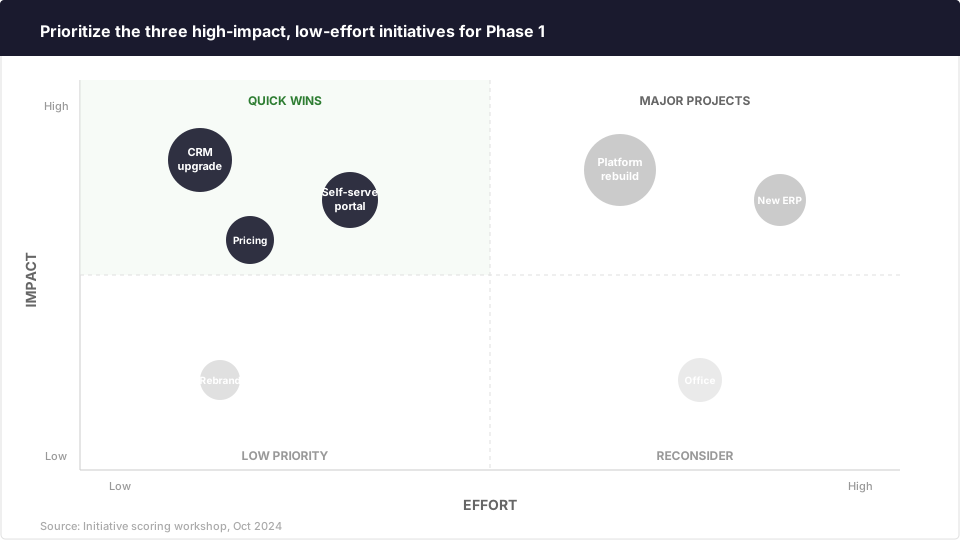
Impact vs. effort. Risk vs. reward. Urgency vs. importance. The axes change, the structure stays the same.
This layout is persuasive because it makes prioritization feel objective. Instead of saying “I think we should do these three things first,” you’re saying “these three things scored highest on both dimensions.” The framework did the arguing for you.
A warning: 2x2s can be reductive. When you force everything onto two axes, you lose whatever doesn’t fit neatly into those dimensions. That’s fine when the two dimensions are genuinely the most important factors. It’s misleading when they’re just the two easiest things to measure.
Use it for prioritization and portfolio decisions. Don’t use it to oversimplify a problem that needs more nuance.
#10 The Harvey ball scorecard
A table where each cell contains a Harvey ball — a filled, half-filled, or quarter-filled circle — instead of a number. Useful for vendor evaluations, capability assessments, and any comparison where “mostly meets” is more honest than a score out of ten.
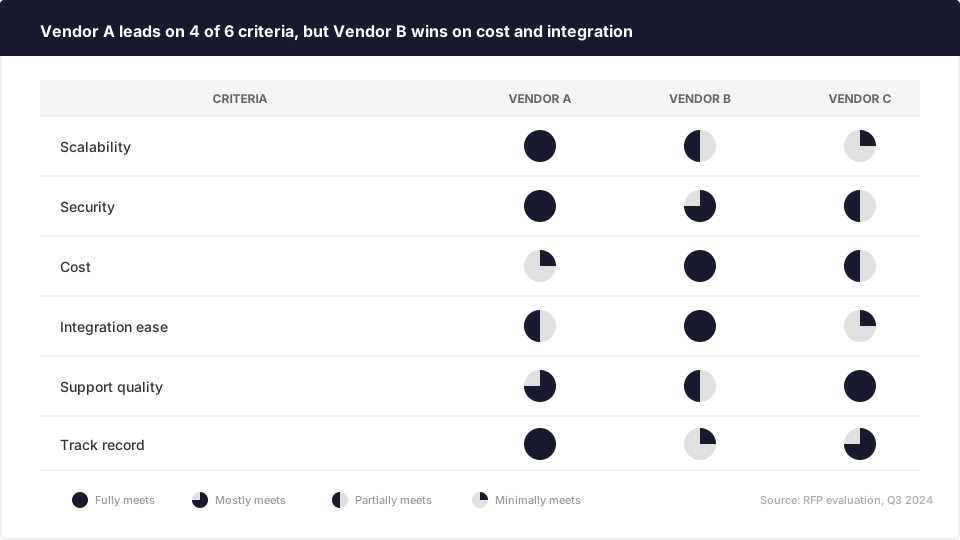
The reason this layout works better than a numbered scorecard: it discourages false precision. When you rate something 7 out of 10, people will argue about whether it’s really a 7 or a 6. When you fill three-quarters of a circle, the message is “mostly good.” That’s usually the right level of precision for a recommendation.
I first saw these in a McKinsey vendor evaluation and thought they were old-fashioned. Then I watched the partner use them to run a twenty-minute discussion that would have taken an hour with a spreadsheet. The visual pattern lets you see which vendor wins overall without adding up columns. Your eye does the math.
The layout scales well. You can fit six or seven criteria and three or four options on a single slide without it feeling crowded. Try that with bar charts.
#11 The quote + evidence
A customer or stakeholder quote on the left, supporting data on the right. The quote gives the human angle. The data gives the proof. Neither one works as well alone.
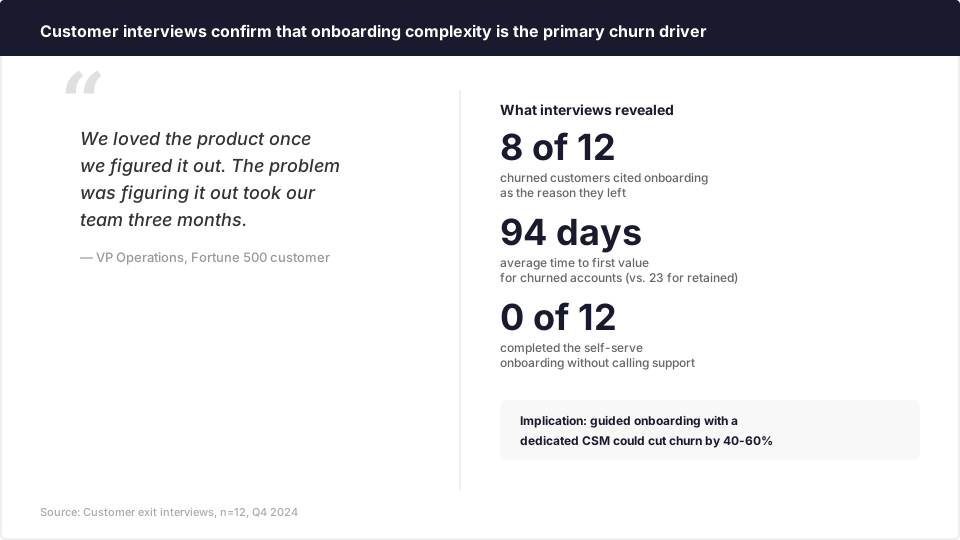
A quote by itself is an anecdote. Data by itself is abstract. Put them together and you get something that’s hard to dismiss. The VP who says “it took us three months to figure out your product” is one person’s experience. But when that quote sits next to “8 of 12 churned customers cited onboarding,” it becomes evidence.
This layout is particularly good for the research phase of a project when you’re presenting findings from customer interviews or employee surveys. The quote makes the data feel real. The data makes the quote feel representative.
One thing I’ve learned: choose the quote carefully. It should say something specific, not generic. “We were dissatisfied with the service” is boring. “It took our team three months” has a number in it. Numbers in quotes are more persuasive than adjectives.
#12 The timeline
Milestones along a horizontal line with phase bars above and risk callouts below. The classic implementation roadmap.
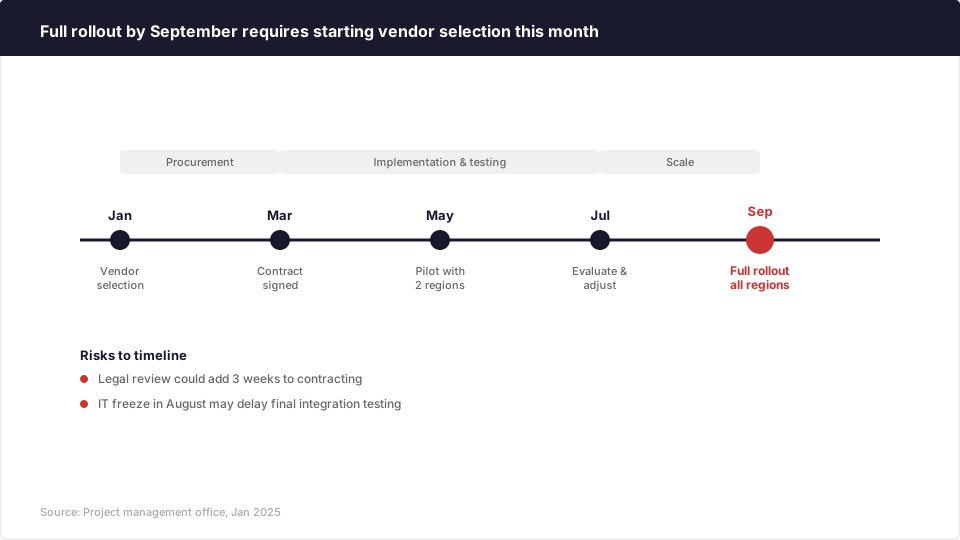
Every project has a timeline slide, and most of them are bad. They’re either too detailed (a Gantt chart crammed onto a slide) or too vague (five boxes with dates and no context about what happens between them).
The version that works has three layers. Milestones on the line itself — these are the dates that matter. Phase bars above — these show what’s happening between milestones. And risks or dependencies below — these are the things that could blow the timeline up.
The highlighted milestone at the end is important. That’s the thing everyone cares about: when is this done? Make it visually distinct. Color it differently. The rest of the timeline exists to explain how you get to that date.
#13 The dashboard
Four to six metric tiles across the top, each with a number, a trend indicator, and a sparkline. Below the tiles, two panels that dig into whatever needs attention.
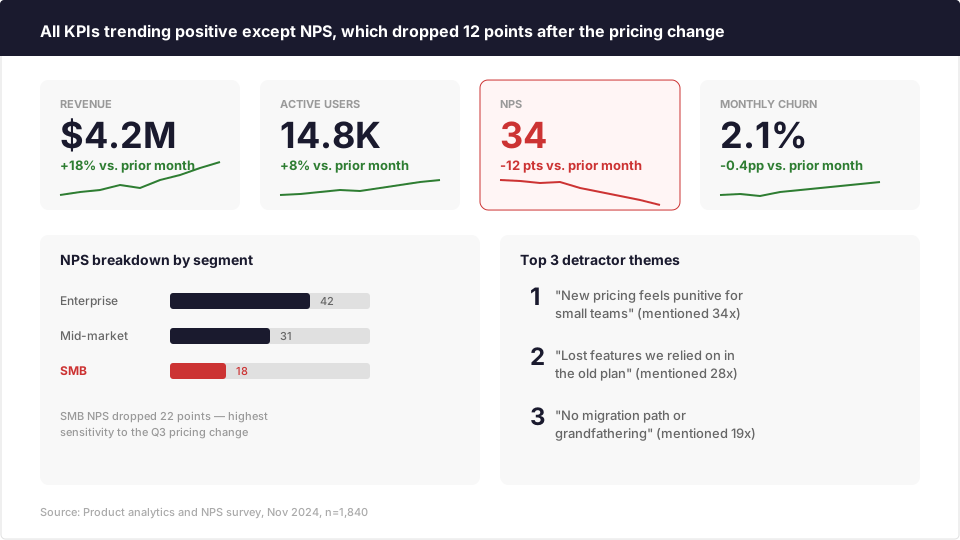
This is the monthly or quarterly check-in slide. It gives the audience the full picture in five seconds: what’s green, what’s red, and what do we need to talk about.
The trick is restraint. A dashboard with twelve tiles is not a dashboard. It’s a spreadsheet. Pick the four to six metrics that actually drive decisions and put only those on the slide. If someone asks about a seventh metric, it goes in the appendix.
I’ve also found this layout works well for survey result summaries. The tiles across the top show the headline scores — NPS, satisfaction, intent to renew — and the bottom panels break down the one score that moved the most. The format gives both the overview and the “so what” on a single slide.
The red tile does the most work on this slide. When everything is green, the audience nods and moves on. When one tile is red, every eye goes there first. That’s by design. The red tile is an invitation to have a conversation.
#14 The executive summary
Three columns, each with a header and supporting text below. The most common version: Situation | Findings | Recommendation. Or: Problem | Analysis | Next Steps.
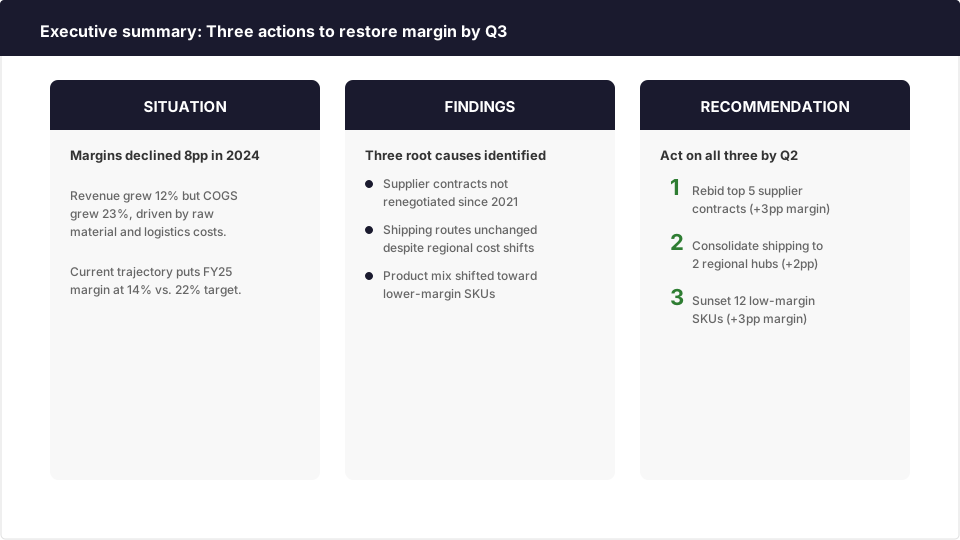
This is the slide that senior partners read when they have four minutes before a meeting. It answers three questions in order: what’s going on, what did we find, and what should we do.
The constraint of three columns forces brevity. You can’t fit a paragraph into each column — you get maybe four or five lines. That limitation is the point. If you can’t summarize your situation in five lines, you don’t understand it well enough yet.
I used to dread building executive summaries because they required having the full story figured out. You can’t write one from the middle of an analysis. It only works when you’ve finished the thinking and can compress it. In practice, the executive summary is often the last slide you build and the first one your audience sees.
Pick the layout before you open PowerPoint
The biggest time savings from knowing these layouts isn’t design speed. It’s thinking speed.
When someone asks me to build a slide, I now ask one question first: which of these fourteen is it? The answer tells me what information I need, how to arrange it, and what the title should say. The layout is a thinking tool, not a design template.
If you’re staring at a blank slide wondering where to start, you’re solving two problems at once: what to say and how to arrange it. Separate them. Decide the message, then pick the layout that proves it.